Attachments & your Library
Attach files to a message. They're encrypted in your browser and kept in your personal Library, ready to reuse across chats.
1Attach a file
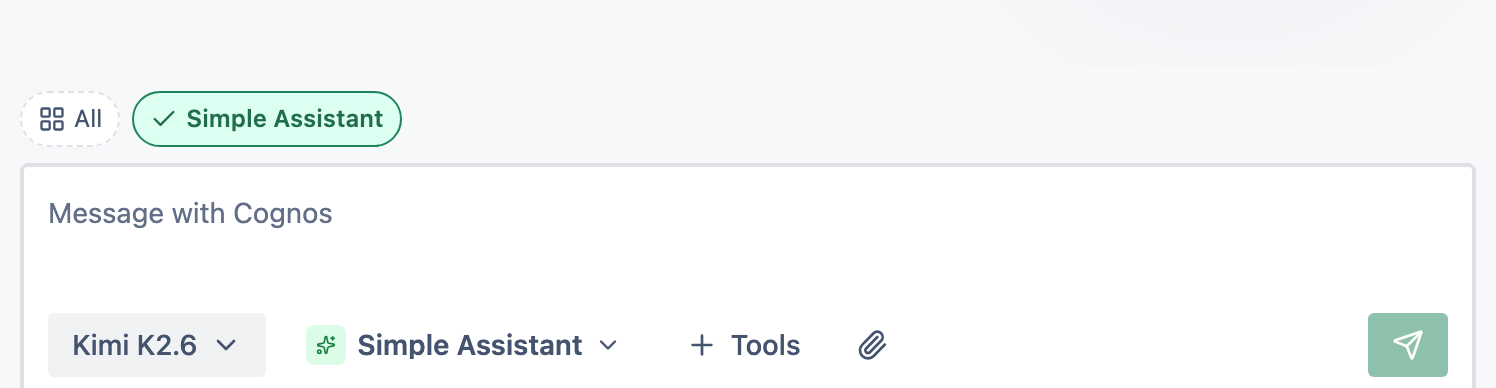
Open the Tools menu
In the message box, open Tools → Attachments.
Upload or reuse
Choose Upload for a new file, or From library to reuse one. Unsupported file types are turned away rather than half-uploaded.
2Your Library
Files belong to you, not to the chat — a conversation only points at a file. Manage them at File library: rename, download, or remove.
3Good to know
- Files are processed, redacted and encrypted in your browser before upload.
- Remove a file and past messages show "File removed" rather than losing history.
- Scanned PDFs get text extraction on your device (English, first version).
- Size and per-account storage limits apply.